PassFab Android Unlock Review: Safety, Pricing, and Effectiveness
Considering PassFab Android Unlock to bypass a screen lock or Google FRP? This review breaks down the software’s actual costs, safety profile, and permanent data loss risks. Learn how it compares to free official unlocking methods so you can make an informed decision before purchasing a license.
Quick Verdict: Is PassFab Android Unlock Safe, Free, and Effective?
Yes, PassFab Android Unlock is generally safe from malware when downloaded directly from its official website, but it is not a free tool, and it will permanently erase your data when removing a screen lock.
Before spending time or money downloading this software, you should know three things:
- It is a paid commercial product: The “free download” only lets you install the software and connect your phone. Actually removing a lock or bypassing FRP requires purchasing a paid license.
- Screen unlocking requires a factory reset: If you use PassFab to remove a forgotten PIN, pattern, or password, it will wipe all photos, contacts, and apps from your device. There is no magic bypass that saves your data.
- FRP bypass success varies: Bypassing a Google account lock depends heavily on your phone’s current Android security patch. Success is not guaranteed on the latest updates.
Safest Next Action: Before paying for third-party software, check if you can unlock your device using free, official methods like Google Find My Device or Samsung SmartThings Find, or by performing a manual hard reset yourself.
What is PassFab Android Unlock?
PassFab Android Unlock is a desktop-based software utility designed to help users regain access to locked Android devices. It targets users who have forgotten their lock screen PIN, pattern, or password, as well as those stuck on the Google Account Verification screen after a factory reset.
Because this is a desktop utility, you must connect your phone to a computer to bypass FRP with a PC or remove a screen lock. The software primarily handles two completely separate processes:
- Screen Lock Removal: Automates or guides the user through forcing a factory reset to remove the local device lock.
- FRP Bypass: Exploits temporary software vulnerabilities to bypass the Google account lock required during device setup.
PassFab supports a wide range of popular Android brands, including Samsung, Xiaomi, Redmi, Vivo, OPPO, and Realme, running on Android versions up to Android 15.
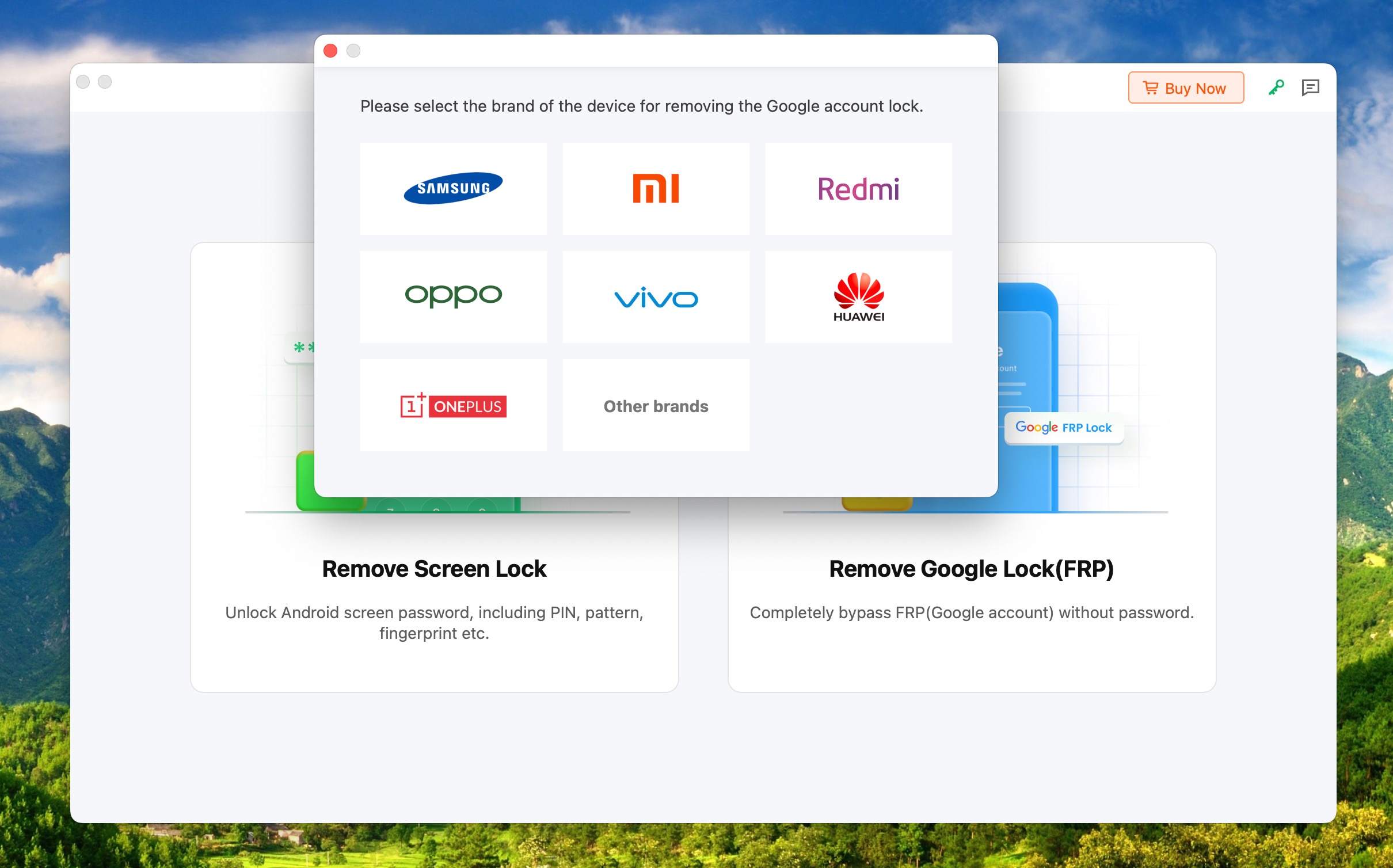
PassFab Android Unlock
Important Safety Note: If you decide to use this tool, only download it from the official PassFab website. Never download “cracked” or modified versions from third-party forums, as these are frequently bundled with dangerous malware and ransomware.
The Reality Check: Data Loss and Hidden Paywalls
Many users download unlocking tools with false expectations. Before proceeding with PassFab, you must understand its severe limitations regarding your personal data and your wallet.
The Mandatory Data Wipe
There is a common misconception that premium unlocking software can bypass a lock screen while keeping your files intact. This is false.
- All data will be erased: PassFab (and similar third-party tools) removes the screen lock by forcing the phone into a factory reset.
- No recovery: All photos, contacts, messages, and unbacked-up app data will be permanently wiped.
The “Free Trial” Paywall
PassFab is heavily marketed with a “Free Download” button, but the software is strictly a paid commercial product. Here is what the pricing model actually looks like:
- What the Free Version Does: Allows you to download the installer, open the interface, and plug in your phone to see if the software recognizes your device.
- What the Paid Version Does: Actually performs the screen unlock or FRP bypass.
- The Real Cost: You will be prompted to purchase a monthly, yearly, or lifetime license (typically ranging from
 50) the moment you click “Start” to begin the unlocking process.
PassFab vs. Free Official Unlocking Methods
Before paying for PassFab, you should verify if you can regain access using official, free Android unlocking and FRP methods. Official methods are always safer, but they require you to know the account credentials previously synced to the locked device.
| Feature/Requirement | PassFab Android Unlock | Google Find My Device | Samsung SmartThings Find |
| Cost | Paid (License required) | 100% Free | 100% Free |
| Safety Risk | Low (if from official site) | Zero (Official Google tool) | Zero (Official Samsung tool) |
| Data Loss (Screen Lock) | Yes (Forces Factory Reset) | Yes (Remote Erase) | Yes (Remote Erase) |
| Account Prerequisites | None required | Must know Google Email & Password | Must know Samsung Account credentials |
| Best For… | Users who completely forgot their Google/Samsung account info | Users who know their Google login but forgot the device PIN | Samsung users who enabled remote unlock features previously |
The Bottom Line: All methods—whether a paid third-party tool or an official remote wipe—will result in total data loss when removing a forgotten screen lock. Because the result is exactly the same, it is always recommended to try wiping your device for free via Google or Samsung before purchasing third-party software.
Evaluating Screen Lock Removal: How It Works
If you cannot use official methods and decide to evaluate PassFab for screen lock removal, it is helpful to know exactly what the software is doing behind the scenes.
Rather than hacking or bypassing the lock via code, PassFab essentially acts as a guided interface for a manual hard reset. Here is a summary of its workflow:
- Device Connection: The user connects the locked Android phone to a computer via a USB cable and selects the “Remove Screen Lock” module.
- Firmware Preparation: The software identifies the device model and prepares the appropriate instructions or matching firmware.
- Recovery Mode Guide: The tool provides on-screen instructions telling the user exactly which physical buttons to press (e.g., Volume Up + Power) to boot the phone into Android Recovery Mode.
- Data Wipe Initiation: Once in Recovery Mode, the user follows the prompts to select “Wipe data/factory reset.”
Expected Result: The feature works reliably well across most devices because it relies on Android’s built-in Recovery Mode rather than a software exploit. However, because you are just paying for a clean interface that guides you through a manual hard reset, many users prefer to simply look up the physical button combinations for their specific phone model and do it for free.
Evaluating FRP Bypass: Success Rates and Limitations
Bypassing Google’s Factory Reset Protection (FRP) is a much more complex task than simply erasing a screen PIN. If you are locked out by a “Verify your account” screen, PassFab offers a dedicated FRP bypass module, but you must set realistic expectations.
FRP is a core security feature designed to deter theft. Third-party unlocking tools bypass it by finding temporary loopholes or vulnerabilities in the device’s software to provide an Android FRP solution.
Common Limitations to Expect:
- Exploits are temporary: When Google or a manufacturer (like Samsung or Xiaomi) releases a new security patch, it frequently closes the loopholes that PassFab relies on. An exploit that worked flawlessly last month might fail today.
- Fluctuating success on new updates: Users on newer operating systems are much more likely to experience bypass failures until the software developers discover a new vulnerability. For instance, an Android 14 FRP bypass is significantly harder to achieve than on older versions.
- Hardware and connection failures: Because the bypass requires a PC connection, basic technical issues frequently cause the process to fail. If your computer lacks the correct OEM USB drivers, or if you are using a faulty USB cable or damaged charging port, the software will not even recognize the phone to attempt the exploit.
- Complex steps: Depending on your device, PassFab may still require you to perform complicated on-device steps, such as navigating through the Talkback menu or downloading specific APKs through a hidden browser window.
Before purchasing a license specifically for FRP bypass, check the official PassFab release notes to see if your exact device model and current security patch level are actively supported.
PassFab Android Unlock: Pros, Cons, and Safety
To summarize the tool’s capabilities, here is an objective look at the strengths, weaknesses, and security profile of PassFab compared to other Android unlocking and repair tools.
Pros:
- User-friendly interface: The step-by-step visuals make complex recovery modes easier for non-technical users to navigate.
- Consolidates instructions: Saves you from having to search forums for the correct physical button combinations for your specific phone.
- Customer support: Offers dedicated support channels, which is not available with free, unofficial bypass scripts.
Cons:
- Requires a paid license: The software cannot unlock a device for free.
- Total data loss for screen unlocking: It forces a factory reset; there is no way to save your personal files.
- Inconsistent FRP success: Success rates fluctuate constantly as smartphone manufacturers patch the vulnerabilities the software relies on.
Safety Profile:
PassFab is a legitimate software development company. The tool is safe to use and is free of malware or ransomware, provided you download it directly from the official website. It does not permanently damage your phone’s hardware, but using it will completely erase your local data.
Frequently Asked Questions
Is PassFab Android Unlock safe to use?
Yes, PassFab Android Unlock is safe and free of malware as long as you download it from the official PassFab website. However, avoid downloading “cracked” versions from third-party sites, as those frequently contain viruses.
Does PassFab Android Unlock erase data?
Yes. When using PassFab to remove a forgotten PIN, pattern, or password, the software must force a factory reset on your device. This will permanently erase all photos, contacts, apps, and personal files stored on the phone.
Is PassFab free or do I have to pay?
PassFab is a paid software tool. While you can download the application for free to see if it recognizes your connected device, you must purchase a license to actually perform a screen unlock or FRP bypass.
Does PassFab work on Android 15?
PassFab supports devices running Android versions up to Android 15. However, success rates—particularly for FRP bypass—depend heavily on the specific security patch installed on your device, as newer patches frequently block third-party unlock exploits.
Can PassFab remove Google FRP without Talkback?
PassFab frequently updates its FRP bypass methods to include solutions that do not require navigating the complex Talkback menu. However, whether a non-Talkback method is available depends entirely on your specific phone model, and many users still find themselves needing to use an FRP bypass with TalkBack if the automatic exploit fails.
Final Verdict: What Should You Do Next?
PassFab Android Unlock is a legitimate, functioning tool that can help users regain access to locked devices. However, you are essentially paying for a clean, guided interface that walks you through forcing a manual factory reset—a process that will completely wipe your data.
If you are locked out of your device, you should exhaust all free options before purchasing third-party software:
- Try Official Remote Wipes First: Use Google Find My Device or Samsung SmartThings Find. These official tools are free, safe, and achieve the exact same result (a device wipe) without requiring a software license.
- Perform a Manual Hard Reset: If you just need to bypass a screen lock, you can look up the physical button combination for your specific phone model to enter Recovery Mode and wipe the device yourself for free.
- Seek Official Support: If you are stuck on a Google FRP lock and have proof of purchase, the safest route is to contact your device manufacturer’s official support channels or visit an authorized repair center to have the lock officially removed.
Only consider paid third-party unlocking tools if you have exhausted free methods, are prepared to lose your data, and understand that FRP bypass success is never 100% guaranteed.
Related Articles