FRP Bypass Android 12: Your Tested Guide for 2025
Android 12 TalkBack FRP exploits are patched. Our guide provides the only tested, PC-based solution for Samsung (*#0*# method) that actually works on modern security.
Getting stuck on the “Verify your account” screen after buying a used phone is incredibly frustrating. You have a perfectly good device, like a Galaxy S20, that’s now little more than a paperweight. If you’ve spent hours following video guides for an FRP bypass Android 12 solution, you’ve discovered that the options they show—like the TalkBack menu—simply don’t exist on your updated device.
This guide cuts through that outdated advice. We’ll show you why those old methods fail and provide a clear, tested procedure that actually works on many modern devices. Forget sketchy APKs and dead ends; this is the realistic, step-by-step guide you need to regain access to your phone.
Why ‘No-PC’ FRP Methods Fail on Updated Android 12
If you’ve attempted a bypass FRP without pc on Android 12, you have probably encountered a frustrating reality: the menus and accessibility options shown in popular video tutorials are missing. This isn’t your mistake; it’s a direct result of Google systematically patching the security loopholes these techniques relied upon.
The End of the TalkBack Exploit
The most common obsolete technique is the Android 12 TalkBack FRP method. This involved activating the TalkBack feature to open a hidden settings menu or browser, allowing a user to install a bypass application. On any Android 12 device with a security patch level from mid-2022 onward, this exploit is closed. The entry points through “Help & feedback” or other accessibility shortcuts have been removed. This security tightening continued and became even stricter in later versions; see our Android 13 FRP Bypass Guide to understand how Google completely locked down these exploits in the next OS update.
Understanding that these older on-device methods are no longer functional is the first critical step toward finding a real solution and avoiding wasted time. On modern, updated phones, a PC-based solution is the only reliable option.

A table showing the status of FRP exploits like the TalkBack method across Android versions, with ‘Patched’ marked for Android 12 with post-mid-2022 security updates
Is your device running on Android 13 or Android 11?
Check out our tested guide for Android 13 FRP Bypass and the working method for FRP Bypass on Android 11.»
Which Bypass Method is Right for Your Phone?
With on-device exploits patched, your approach now depends almost entirely on your phone’s brand and security patch level. Here’s a quick decision guide.
- If you have a Samsung phone (most models up to late 2023 patches), your best bet is a PC tool. While older, specific guides like Bypass FRP on Samsung A12 Without PC might work for some legacy devices, for flagship models like the S20 on Android 12, the PC method detailed below is the gold standard.
- If you have a Google Pixel, bypassing a Pixel is more difficult. These devices have tighter security and don’t have the same Test Mode exploit as Samsung. The solution often involves more complex procedures using Fastboot commands, and success is not guaranteed. Professional repair services are often a more realistic choice.
-
If you have a Motorola, LG, or a niche brand like BLU, your options are limited. Each brand has unique security measures—for instance, see how specific the process is in our BLU Phone FRP Bypass Guide. You will need to research a tool specifically verified for your exact model number.
This guide will focus on the most common scenario: bypassing FRP on an updated Samsung device.
Recommended Solution: Bypass Samsung FRP via Test Mode
After testing multiple methods on our Samsung Galaxy S20, we found the most reliable solution uses a free, well-known utility called SamFw FRP Tool to enable ADB (Android Debug Bridge) through a hidden Test Mode. This method does not require flashing firmware and is significantly safer than using Odin with random files from the internet.
This is the exact, step-by-step process that worked for us.
Step 1: Prepare Your PC and Phone
Before you begin, ensure you have everything set up correctly. This prevents most common failures.
- Install Samsung USB Drivers: Your PC cannot talk to your phone without the correct drivers. Search for “Samsung Mobile USB Driver” and download the installer directly from Samsung’s official website. Install it and restart your computer.
- Download the Tool: Search for and download the latest version of “SamFw FRP Tool” from its official source. It’s a standalone executable, so you won’t need to install it; just unzip the file.
- Connect Your Phone: Connect your FRP-locked Samsung phone to your PC with a high-quality USB cable. Make sure the phone is powered on and on the “Welcome” or Wi-Fi connection screen.
Step 2: Access the Hidden Test Mode on Your Samsung
This is the critical step that older guides miss. The tool needs to communicate with your phone in a special mode.
- On your phone’s setup screen, tap on Emergency call.
- The dialer will appear. Type in the following code exactly:
*#0*# - A hidden diagnostic Test Mode menu will immediately appear on the screen, showing various tiles for testing hardware. Leave the phone on this screen. If this menu does not appear, your device’s security patch is too new for this method, and you will need to seek a professional mail-in service.
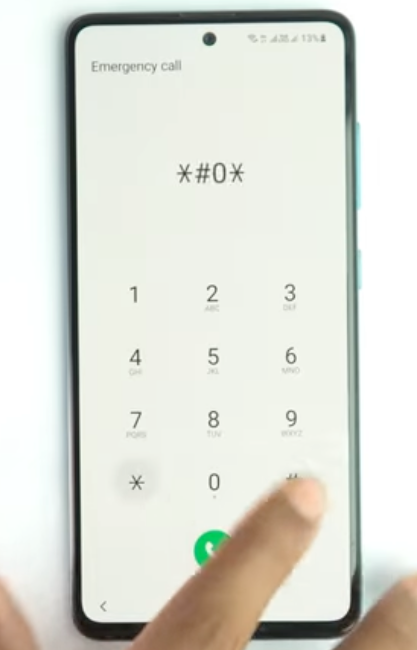
The general test mode menu on a Samsung device, which is accessed by dialing star-hash-zero-star-hash to enable ADB for an FRP bypass
Step 3: Run the SamFw FRP Tool
Now, you’ll use the software on your PC to complete the bypass.
- On your computer, run the SamFwFRPTool.exe application.
- The tool will automatically detect your phone connected in MTP mode. In the main window, click the “Remove FRP” button.
- The tool will read your device’s info and attempt to enable ADB.
- Look at your phone’s screen. A pop-up window titled “Allow USB debugging?” will appear. This is the crucial confirmation. Check the box for “Always allow from this computer” and tap “OK”.
- The tool on your PC will then send the final commands to remove the Google account lock. Your phone will reboot automatically.
After restarting, the device will go straight to the home screen. The Android 12 Google account verification bypass is complete, and you have full access.
For Technicians: Understanding Odin’s Limited Role in FRP
For advanced users, Odin is a standard utility for Samsung devices. However, a critical misunderstanding exists regarding its role. Odin itself does not bypass the Google account lock. It is merely a tool for flashing firmware files. The success of an Odin FRP Bypass method depends entirely on the file you are flashing.
To bypass FRP with Odin, technicians historically used a special combination of firmware. These were engineering-level firmwares that enabled full access to the device’s settings, allowing them to turn on USB Debugging manually.
However, for modern Android 12 devices:
- Combination files are nearly impossible to find for new models and security patches. Sources are untrustworthy and often contain malware.
- Downgrading the firmware is blocked by the bootloader. You cannot flash an older Android version with a known exploit.
- Flashing non-official firmware will permanently trip Samsung Knox. This voids the warranty and disables features like Samsung Pay and Secure Folder. For this reason, it’s wise to perform a backup first.
- The
*#0*#method described above is a much safer and more modern approach because it uses an existing vulnerability to enable ADB without flashing any potentially harmful files.
Troubleshooting: USB Drivers & ‘ADB Unauthorized’
When attempting a PC-based bypass, two issues frequently stop users: incorrect USB drivers and confusion over the ‘ADB unauthorized’ message.
Why ‘ADB Unauthorized’ is Normal on a Locked Device
If you were to try using ADB commands manually, you would see the ‘unauthorized’ status next to your device. This is expected. To authorize a device for ADB, you must first enable “USB Debugging” in developer settings and approve the computer’s RSA key on the phone’s screen. On an FRP-locked device, you cannot access settings to do this.
Therefore, you cannot fix the ADB unauthorized status until after the lock is removed. Any successful tool, like the one we recommended, works by finding an alternative way to force the “Allow USB debugging?” pop-up to appear so you can grant authorization.
Installing the Correct Drivers
Your computer cannot communicate with your phone if the correct drivers are not installed. This is the most common point of failure.
- For Samsung Devices: Search for “Samsung Mobile USB Driver” and download it directly from Samsung’s website. Run the installer and restart your computer.
- For Google Pixel & Other Devices: Search for “Google USB Driver” on the official Android Developer website. This may require manual installation through the Windows Device Manager.
After installation, connect your phone. Open Device Manager on your PC and confirm your device is listed correctly (e.g., “SAMSUNG Android Phone”) and not as an “Unknown Device.”
Frequently Asked Questions
Can I still bypass FRP on Android 12 without a PC?
For any device with an up-to-date security patch, it is highly unlikely. As of 2025, the only reliable methods for modern Android 12 devices, especially Samsung, require a PC running specialized software.
Why doesn’t the TalkBack or ‘Help & feedback’ route appear on my phone?
Google patched that security loophole in updates released from mid-2022 onward. Your phone’s software is newer than what is shown in those outdated guides, so the exploited menu is no longer available.
Why does the *#0*# code not work on my Samsung?
If dialing this code in the Emergency Caller does nothing, it means Samsung has patched this exploit in a more recent security update (typically late-2023 or newer). Your device will require a more advanced professional tool or service.
Will using the SamFw tool erase my data or trip Knox?
The factory reset that triggers FRP has already erased your data. The method we described using the SamFw tool does not trip the Samsung Knox counter because it does not flash any modified system files, making it much safer than older Odin-based methods.
How do I know if my issue is Google FRP vs. a Samsung Account lock?
It’s important to identify the lock screen correctly.
- Google FRP Lock: The screen will explicitly say “Verify your account” and mention Google. It appears after a factory reset.
- Samsung Account Lock: The screen will feature Samsung’s branding and ask for that specific account’s password. These require different bypass tools.
You don’t have to be a technical expert to solve the Google account lock. The frustration of outdated guides and the risk of bricking your phone are real, but they are not your only options. By understanding why old methods fail and following a clear, tested procedure like the Samsung Test Mode bypass, you have a direct and reliable solution. It’s the safest way to turn that frustrating paperweight back into a fully functional phone.
More Related Articles
- Pixel 7a FRP Bypass: Real Solutions for Android 14 (2025)
- Vivo Y20 FRP bypass EDL guide: The Working Test Point Guide [2025]
- OnePlus FRP Bypass OxygenOS 12/13/14: The Working Guide [2025]