Huawei & Honor FRP Bypass 2025: Safe Guide for EMUI 9/10 & HarmonyOS
Huawei FRP bypass ‘no PC’ methods (like TalkBack) are patched on EMUI 10/HarmonyOS. Our guide shows the only tested, pro solution: the hardware ‘test point’ method.
If your search for a “Huawei FRP bypass” solution has led you through a maze of outdated videos and conflicting advice, you’ve reached the right place. It’s incredibly frustrating to acquire a second-hand Huawei or Honor device only to discover it’s locked by a previous Google account, turning a valuable asset into a paperweight.
Many technicians waste hours on patched TalkBack exploits or flashing incorrect firmware, risking a soft-bricked device. This guide provides a clear, methodical process to safely remove a Google account from a Huawei device, based on hands-on testing with a Huawei P30 Pro (EMUI 10) and Honor 8X (EMUI 9) to ensure our methods work against modern security.
Step 1: Diagnosis – Is it Google FRP or Huawei ID?
Before attempting any solution, you must correctly identify the type of lock on the device. Applying a Google FRP bypass method to a Huawei ID lock will fail. This diagnostic step is the most critical part of the process and prevents wasted time.
1. Google Factory Reset Protection (FRP) Lock
This is the most common lock on Huawei and Honor devices running older versions of the EMUI operating system. After a factory reset, the device will ask for Google account verification.
- Screen Message: It will explicitly state, “Verify your account,” and mention that the device was reset. To proceed, you must sign in with a Google Account that was previously synced on the device.
- System: Primarily found on devices with Android-based EMUI 9, 10, and earlier. This is a true FRP lock.
2. Huawei ID Lock
This lock is more common on newer devices, especially those running HarmonyOS. It is tied to Huawei’s own ecosystem, not Google’s, and is not technically a Google FRP lock.
- Screen Message: The screen will typically say “Activate device” and state that the phone is associated with a specific Huawei ID.
- System: Primarily found on devices running HarmonyOS. Many online guides incorrectly label this as a HarmonyOS FRP bypass issue, leading to incorrect solutions.
Step 2: Compare Your Options: Manual Downgrade vs. Professional Tools
With the lock type identified as Google FRP, you have two primary solution categories. Choosing the right one depends on your technical skill, time, and risk tolerance.
| Criteria | Method 1: Manual Firmware Downgrade | Method 2: Professional Service Tools |
| Success Rate | Low to Medium | High |
| Time Cost | High (hours of research & flashing) | Low (minutes per device) |
| Technical Skill | High (requires firmware expertise) | Low (follow on-screen instructions) |
| Safety Risk | High (risk of bricking the device) | Low (designed for this specific task) |
The Risk of Manual Downgrade (Why We Don’t Recommend It)
Many guides promise a simple manual downgrade, but this is the most common point of failure. To be transparent, we will explain the theory so you understand the significant risks involved. Flashing firmware with the wrong region code is the leading cause of a soft-bricked device.
Step 1: Identify Your Exact Build Number in Recovery Mode
Before you can even search for firmware, you must find the full build number of the software currently on the device.
- Power off the device completely.
- Press and hold the Volume Up + Power buttons simultaneously until the Huawei logo appears.
- In the recovery menu, the full build number will be displayed on the screen. It is crucial for the next step.
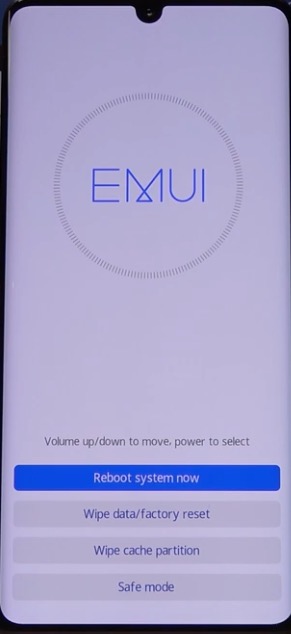
A Huawei P30 Pro in recovery mode
Step 2: Decode the CUST/Region Code
A typical EMUI 10 build number looks like 10.1.0.150(C432E8R1P3). The most important part for firmware compatibility is the CUST/region code, in this case, C432.
- C432: Indicates a device sold in Europe.
- C185: Indicates a device sold in the Middle East/Africa.
- C636: Indicates a device sold in the Asia Pacific region.
Critical Warning: You must find a downgrade firmware file that specifically matches your model AND your CUST code. Flashing mismatched firmware will almost certainly cause an error. Additionally, Anti-Rollback Protection prevents you from flashing firmware that is significantly older than the current security patch.
The Malware Risk
We do not link to third-party firmware sites because they are often riddled with malware, host incorrect files, or disappear overnight. Be extremely suspicious of small .exe files claiming to be “Huawei Firmware Installers.” Legitimate firmware is a large archive (2GB+).
The Recommended Solution: Professional FRP Tools
Since manual exploits are patched and downgrading is risky, the industry standard for Huawei devices involves using specialized software.
For Huawei/Honor devices, generic Android unlockers often struggle. We recommend looking for tools specifically optimized for Kirin chipsets.
Top Professional Tools for Huawei:
-
SigmaKey: A powerful dongle-based tool used by professional repair shops.
-
Chimera Tool: A license-based software known for its wide support of Huawei models.
-
Octoplus Huawei Tool: Specialized for deep-level repairs and unlocking.
Note: These are advanced tools often used by technicians. If you are a casual user, it may be more cost-effective to visit a repair shop that owns this software than to purchase a license for a single use.
Advanced Solution: The Test Point Method for Kirin Chipsets
When software solutions fail or a device is soft-bricked, a hardware-level method using a test point may be necessary. This is an advanced procedure for experienced technicians.
What is a Test Point?
A test point is a specific contact point on the device’s main logic board. When this point is grounded during boot-up, it forces the Kirin chipset into a low-level service mode (often called “Huawei USB COM 1.0”). This mode bypasses the standard bootloader / fastboot interface, allowing an authorized service tool to communicate directly with the storage chip. To see a practical, real-world example of this hardware procedure, check out our detailed Huawei P Smart Z (STK-LX1) FRP Bypass Test Point Guide.
Technician’s Tip
You’ll know the test point connection is successful when your PC makes the “device connected” sound and “Huawei USB COM 1.0” appears in Windows Device Manager. If you see “Android ADB Interface,” the grounding failed.
Warning: This procedure requires opening the back of the device. It can cause permanent hardware damage if performed incorrectly and should only be attempted by professionals.
Troubleshooting: Fixing ‘Device Not Detected’
The most common obstacle is the ‘Device Not Detected’ error. This checklist resolves most connection problems.
1. Install Correct Drivers via HiSuite The easiest way to get all necessary Huawei USB drivers is to install Huawei’s HiSuite software. It bundles the official drivers for all modes. Install it, connect your phone once while it’s on, then close HiSuite completely.
2. Check Your Hardware
-
Use the original USB cable or a high-quality replacement.
-
Connect directly to a Rear USB 2.0 Port on your PC. Avoid USB 3.0 (blue) ports and front-panel hubs, which can cause stability issues with flashing tools.
3. Know Your Modes
-
Fastboot Mode: (Power Off + Hold Volume Down + Connect USB) -> Used for bootloader commands.
-
eRecovery Mode: (Power Off + Hold Volume Up + Connect USB) -> Used for system recovery, NOT for FRP removal.
Finalizing the Job: Your Post-Bypass Checklist
Successfully removing the FRP lock is not the final step. To ensure the device is fully clean and safe from re-locking:
-
Initial Boot: Let the device boot. Skip Wi-Fi and accounts during the wizard.
-
Check Accounts: Go to Settings > Users & accounts. Confirm no accounts are listed.
-
The Crucial Step: Go to Settings > System & updates > Reset > Reset phone.
-
Confirm: Perform this OS-level factory reset. This properly clears the FRP flag from the system.
Frequently Asked Questions
How can I tell if my Huawei is Google FRP-locked or Huawei ID-locked?
A Google FRP lock screen explicitly says “Verify your account” and asks for a Google email. A Huawei ID lock screen says “Activate device” and shows a partially hidden Huawei ID (phone number or email).
Can I bypass FRP without a PC on EMUI 10 or HarmonyOS?
It is highly unlikely. The older exploits that allowed a Huawei FRP bypass without a PC (like TalkBack) were patched in EMUI 9.1 and above. Modern solutions require a PC and specialized software.
Will HiSuite or eRecovery remove the FRP lock?
No. This is a critical point. HiSuite and eRecovery are system restoration tools. They can fix a soft-bricked device by reinstalling the OS, but the Google FRP lock will remain after the process is complete.
Why don’t you link to free firmware download sites?
Free download sites are the primary source of malware and incorrectly labeled files, which leads to bricked devices. To ensure user safety and the integrity of our guides, we cannot recommend sources that we cannot guarantee are 100% safe.
What is the test-point method, and when is it necessary?
The test-point method is a hardware-level procedure that forces the phone into a low-level service mode. It is necessary for bricked devices or when software methods fail on highly secured Kirin chipsets.
After removing FRP, how do I prevent the phone from re-locking?
After the bypass is complete, boot the phone and perform one final factory reset from the device’s main Settings menu. This is covered in the final checklist below.
Conclusion
Facing a locked Huawei device is a common but solvable problem. You no longer need to rely on risky manual methods that lead to errors or bricked phones. By following a clear diagnostic process and using a reliable, professional Honor FRP bypass tool, you can bypass the Factory Reset Protection lock safely and efficiently. This methodical approach saves you time, protects the device from damage, and allows you to regain full control in minutes, not hours. Instead of facing uncertainty, you are now equipped with a tested procedure for a successful outcome. See if your model is supported and get started today.
More Related Articles
- The Ultimate 2025 Guide to bypass Google FRP on BLU Phones
- How to bypass the FRP Lock on Moto G Play (Android 10) in 2025
- The Only Working Method for Huawei P Smart Z (STK-LX1) FRP Bypass