Samsung Galaxy M33 (SM-M336B) FRP Bypass Android 13/14: Tested PC Methods [2025]
Locked out of your Samsung Galaxy M33 (SM-M336B)? Android 13/14 patches block old methods. Use our verified 2025 guide for the working PC-based One-Click tool and advanced Odin solutions.
Staring at a Google “Verify your account” screen on your Samsung Galaxy M33 is a frustrating dead end. If you’ve tried popular video guides, you’ve already discovered that the old TalkBack and test mode (*#0*#) methods are useless on Android 13 or 14. This isn’t your fault; Samsung systematically patched these loopholes. Trying to fix it with random files from the internet is a fast track to FAIL! (Auth) errors in Odin and a potential security risk.
This guide is different. It’s not just an explanation of your problem; it’s an actionable solution. Based on hands-on work with the SM-M336B model, we’ll provide you with two reliable, PC-based procedures that are effective today.
Why You’re Stuck: Patched Methods on Galaxy M33 (One UI 5/6)
To stop wasting time, you need to know what works and what doesn’t. The effectiveness of any Factory Reset Protection (FRP) bypass depends entirely on your phone’s Android version and security patch.
On the Galaxy M33, the software entry points—which might still work for a general FRP bypass on Android 12 —are now closed. The strict SetupWizard process on Android 13 and Android 14 blocks actions like the TalkBack accessibility exploit until after Google verification.
FRP Method Viability for Galaxy M33 (SM-M336B)
| Method | Android 12 (One UI 4) | Android 13 (One UI 5) | Android 14 (One UI 6) |
*#0*# Test Mode |
Working | Patched | Patched |
| TalkBack Exploit | Working | Patched | Patched |
| PC-Based Tool | Working | Working | Working |
| Manual Flashing | Working | Requires Exact Match | Requires Exact Match |
Choosing Your Method: One-Click Tool vs. Manual Flashing
You have two valid paths forward. Your choice depends on your technical confidence.
| Factor | Method 1: PC Tool (Recommended) | Method 2: Manual Flashing (Expert) |
| Success Rate | Very High (>95%) | Moderate (depends on skill) |
| Time Cost | Low (5-15 minutes) | High (1+ hour) |
| Technical Skill | Low (follow on-screen steps) | High (requires firmware knowledge) |
| Safety Risk | Low | High (risk of bricking) |
Recommendation: Most users should start with Method 1. It is faster, safer, and removes the guesswork. Only proceed to Method 2 if the first method fails.
Method 1: The One-Click Samsung M33 FRP Tool (Recommended)
This is the most direct way to remove the Google account lock. We recommend the SamFw FRP Tool because it is effective for this function. (Professional technicians may also use paid tools like Chimera Tool or UnlockTool).
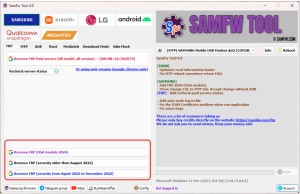
SamFw software interface showing Samsung M33 detected in modem mode for FRP removal
Step 1: Prepare Your PC
The first step is to install the correct Samsung USB drivers. Without them, your computer cannot see the phone.
- Tip: Restart your PC after installation to ensure they load correctly.
Step 2: Enter Download Mode
- Power the device off.
- Press and hold the Volume Up + Volume Down buttons at the same time.
- While holding them, connect the phone to your PC with a high-quality USB-C cable.
- A blue warning screen will appear; press Volume Up once to confirm entry into Download Mode.
Step 3: Run the Tool & Remove Lock
- Launch the SamFw FRP Tool. It should automatically detect your Galaxy M33 and show a COM port number.
- Click the “Remove FRP“ button.
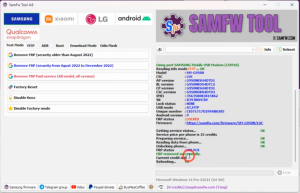
- The process is automated. The software will send commands, and the phone will reboot on its own once the lock is removed.
Pro Tip: Always connect to a rear USB port on your desktop (directly on the motherboard) to prevent connection drops.
Remove FRP with SamFW
Method 2 (Advanced): Manual SM-M336B Unlock with Odin
⚠️ Critical Warning
This method is for experienced technicians only. It involves flashing a factory engineering firmware (“Combination File”). Using the wrong file will trip Samsung Knox and can permanently brick your device. Proceed at your own risk.
This process has two phases: flashing a combination file to enable USB debugging (ADB), and then flashing the full stock firmware to restore the phone.
Part A: Find the Correct Combination File (Binary Check)
Success depends on finding a file that matches your device’s Binary Revision. You cannot downgrade binary versions.
1. Check Your Binary: Boot into Recovery Mode (Power + Vol Up). Look for the firmware build number (e.g., M336BXXS5DWK2).
2. Decode the Number: The character before the last four is the binary. In ...S5DWK2, the binary is 5.
- Rule: You must download a Combination File with binary 5 (or higher). If you flash binary 4, it will fail.
3. Download Files: Use reputable sources like SamFW, SamMobile, or Halabtech to download:
- Combination File (Matching your binary)
- Stock Firmware (Matching your binary and Region/CSC)
4. Flash Combination File:
- Open Odin on your PC.
- Load the Combination file into the AP slot.
- Click Start. The phone will reboot into a factory binary interface.
Part B: Remove FRP & Restore Stock Firmware
1. Remove FRP: With the phone in factory mode, ADB is enabled. Use the SamFw Tool again and click “Remove FRP (ADB Mode)”.
2. Restore Stock: The phone is now unlocked but unusable. You must return it to normal.
- Reboot into Download Mode.
- In Odin, load the 4-file Stock Firmware:
- BL -> File starting with BL_
- AP -> File starting with AP_
- CP -> File starting with CP_
- CSC -> File starting with CSC_ (Select the file starting with CSC, not HOME_CSC, to ensure a clean factory reset).
- Click Start.
Troubleshooting Common Errors
Problem: Device Not Detected
Solution: Reinstall Samsung USB drivers, try a different USB-C cable, or switch to a different USB port.
Problem: Odin Shows ‘FAIL! (Auth)’
Solution: This is a Binary Mismatch. You are trying to flash a file with an older binary version than what is currently on the phone. You must find a newer firmware file. See our guide on bypassing FRP Lock with Odin.
Problem: ADB Shows ‘Device Unauthorized’
Solution: The combination file might be incompatible. Try a different combination file version that matches your binary revision.
Frequently Asked Questions
Can I bypass FRP on Galaxy M33 Android 14 without a PC?
No. Samsung has patched all known “no-PC” exploits (like *#0*# and TalkBack) on One UI 6. A computer is required.
Will Method 2 erase my data?
Yes. While Method 1 might preserve data, Method 2 (Manual Flashing) requires a complete wipe of the device to install the combination file and restore the OS.
Does this affect Samsung Knox?
Method 1 typically does not trip Knox. However, manually flashing unauthorized files (Method 2) poses a risk of tripping the Knox counter, which permanently disables features like Samsung Pay and Secure Folder.
Conclusion: The Right Path to Unlocking Your M33
Being locked out of your phone is a major roadblock, but it’s one you can overcome. Forget the outdated exploits. For a modern Samsung Galaxy M33, the solution requires a PC. We strongly recommend starting with the One-Click Tool (Method 1) for a fast and safe unlock. Only advanced users should attempt the manual flashing method.
More Related Articles
- The Z3X Samsung Tool in 2025: A Technician’s Guide to Modern Android Servicing
- The Complete 2025 Guide to bypass FRP on Samsung S24+
- Bypass FRP on Samsung A12 Without PC [2025 Guide]